
How to setup your Amazon affiliate ID on Zonify
To setup your Amazon affiliate Id on Zonify, follow this guide:
1. Login to your Zonify account.
2. Select "Settings" from the side menu.
3. Scroll down to the Amazon affiliate settings section and switch ON the Affiliate feature:
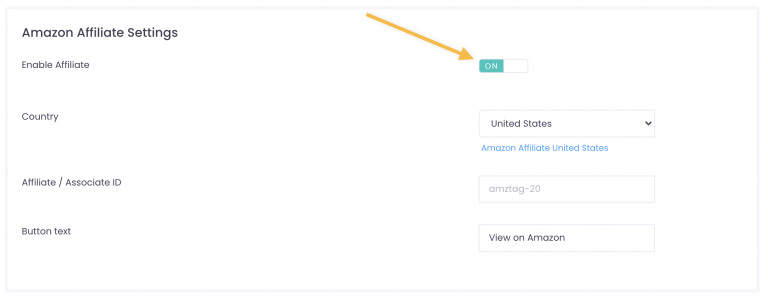 Select the Amazon region that you would like to use from the list:
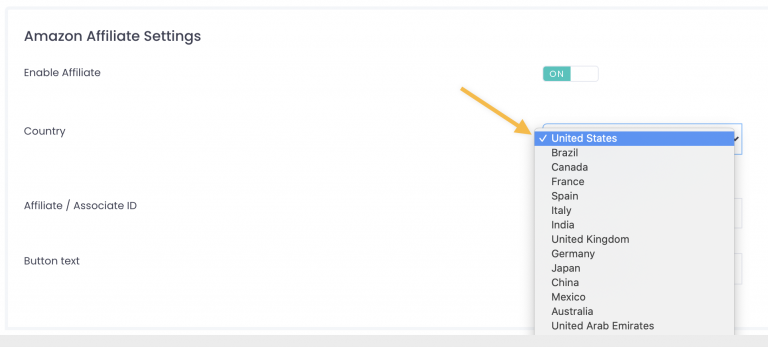 Click on the Amazon affiliate program link:
 You will be redirected to the Amazon Affiliate Program website, according to the Amazon region you selected.
Sign up for the Amazon Affiliate Program or log in to your account if you already signed up.
7. After logging in to your Amazon Affiliate Account, copy your Affiliate Id from the right top corner of the page:

8. Go back to the settings page on the Zonify dashboard and Paste your affiliate id :
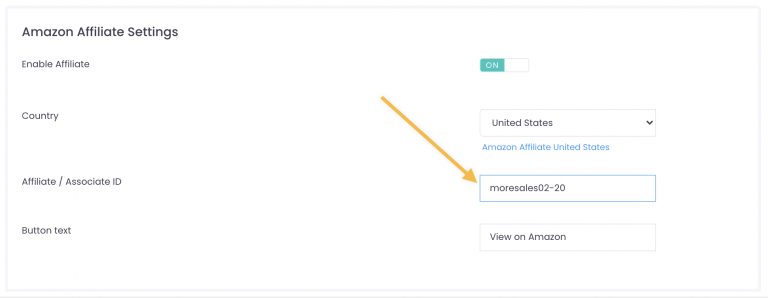
9. Click on save:
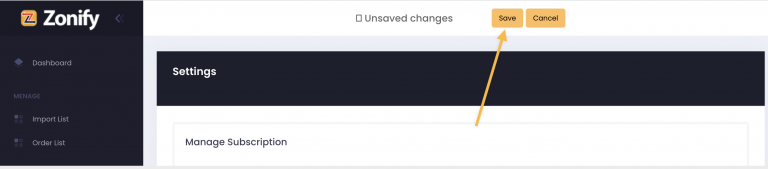
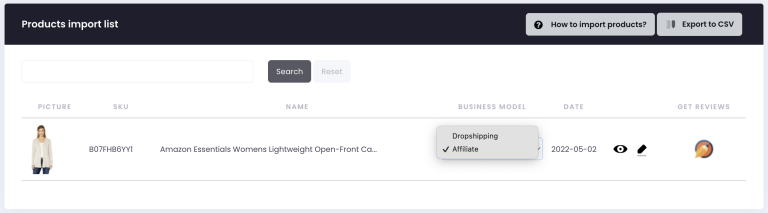
10. Select "Import list" from the side menu
11. For every product that you would like to sell on Amazon, change the "Business model" dropdown to "affiliate".
When you done, click "save".
Watch this video to learn how to set your Amazon affiliate Id on your Zonify account:
How to earn Amazon affiliate commissions with your Shopify store?
Still stuck? Email support@zonify.app and include your store URL.