
How do I change supplier or connect existing product to Zonify?
If you’d like to connect existing products to Zonify or just change the supplier of an existing product, you can do so using our override feature. Follow these steps:
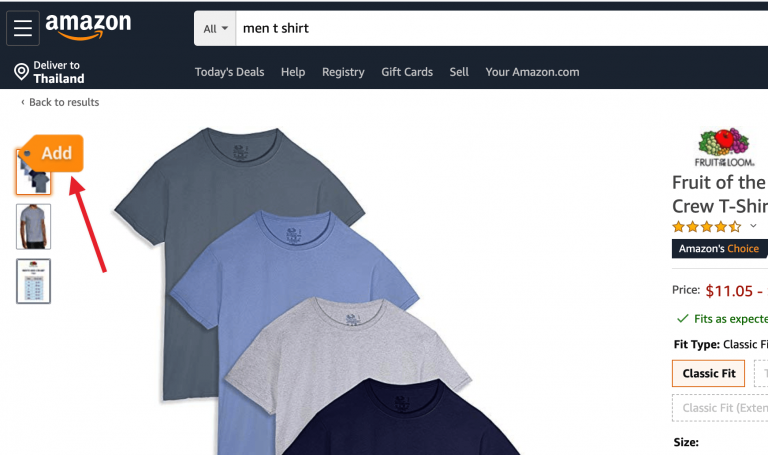
1. Visit your supplier’s product page and click on the "add" button on the top left of your screen.
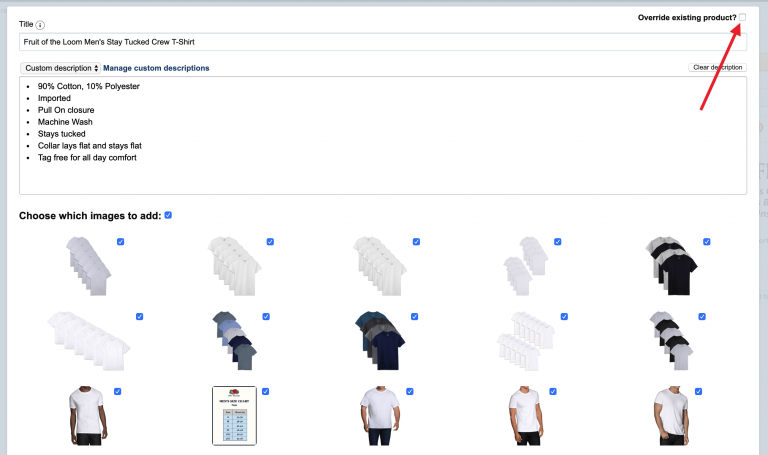
2. Click the “Override existing product” on the top right:
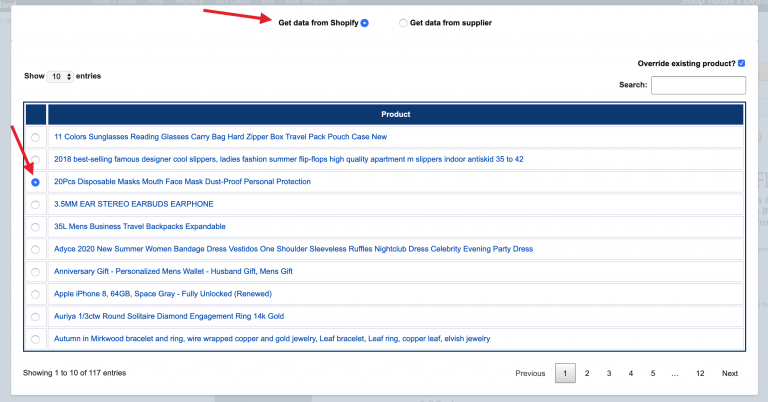
Select from the list the product you would like to override.
And choose wether to use the current shopify data(title and description) or get them from the current supplier page.
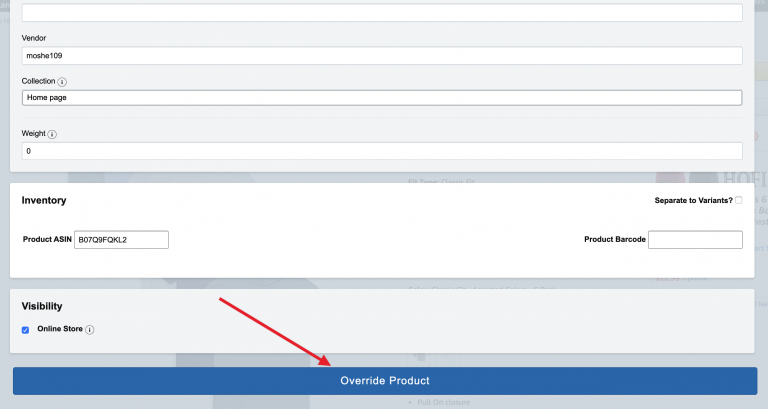
3. Click on the "Override product" button at the bottom of the editor window.
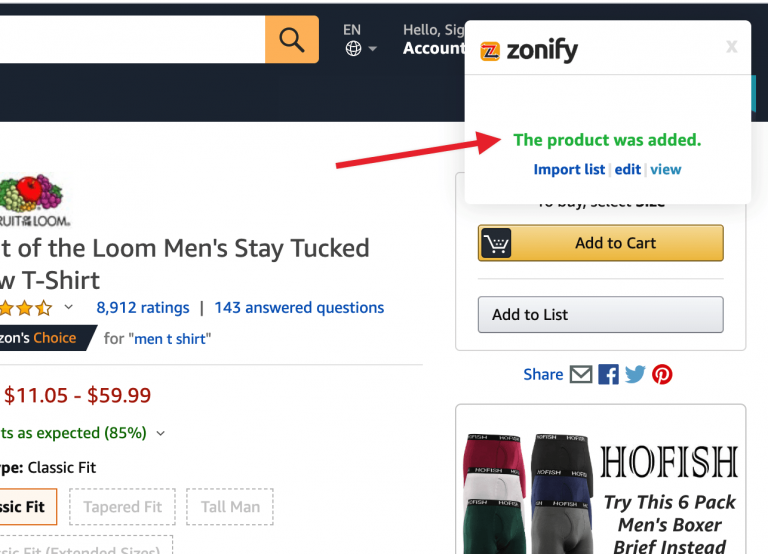
4. If the product has been override successfully, you will get a success message
and you can choose between 3 options to check your product:
Still stuck? Email support@zonify.app and include your store URL.