
How to import products to your store?
There are two ways to import a product. Both open the same kind of editor, where you check the product before it goes to your store.
Option 1: from your Zonify dashboard
Available for Shopify and Wix stores.
- Open your Zonify dashboard.
- In Import from Amazon, paste an Amazon product link or ASIN. To import several, put one per line, up to 20 at a time.
- Pick the Amazon marketplace if you pasted ASINs. Full links keep their own marketplace.
- Click Get product.

The product editor opens on the dashboard. Check the details, then click Add to your Store.
If the Chrome extension is installed, the dashboard shows Extension connected and products load through your browser. Without it, Zonify loads the product for you, up to 40 products an hour.
Option 2: with the Chrome extension
Available for Shopify, Wix and WooCommerce.
- Install the Zonify Chrome extension and sign in to Zonify once.
- Open any product page on Amazon.
- Click the Add button at the top left of the page.
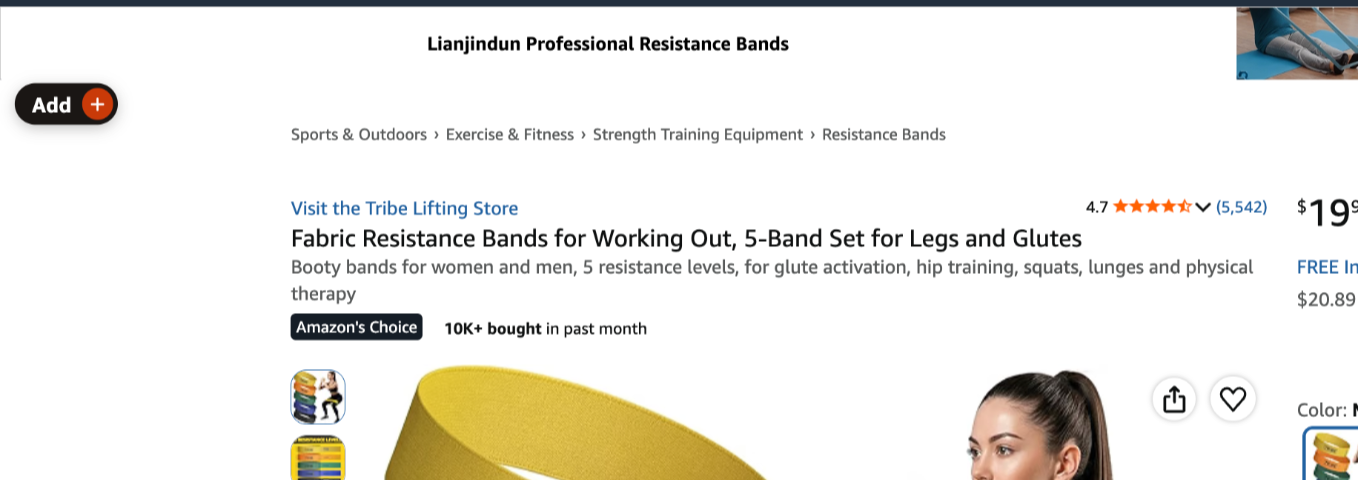
- The Zonify panel opens over the page. Edit the product, then click Add to store.
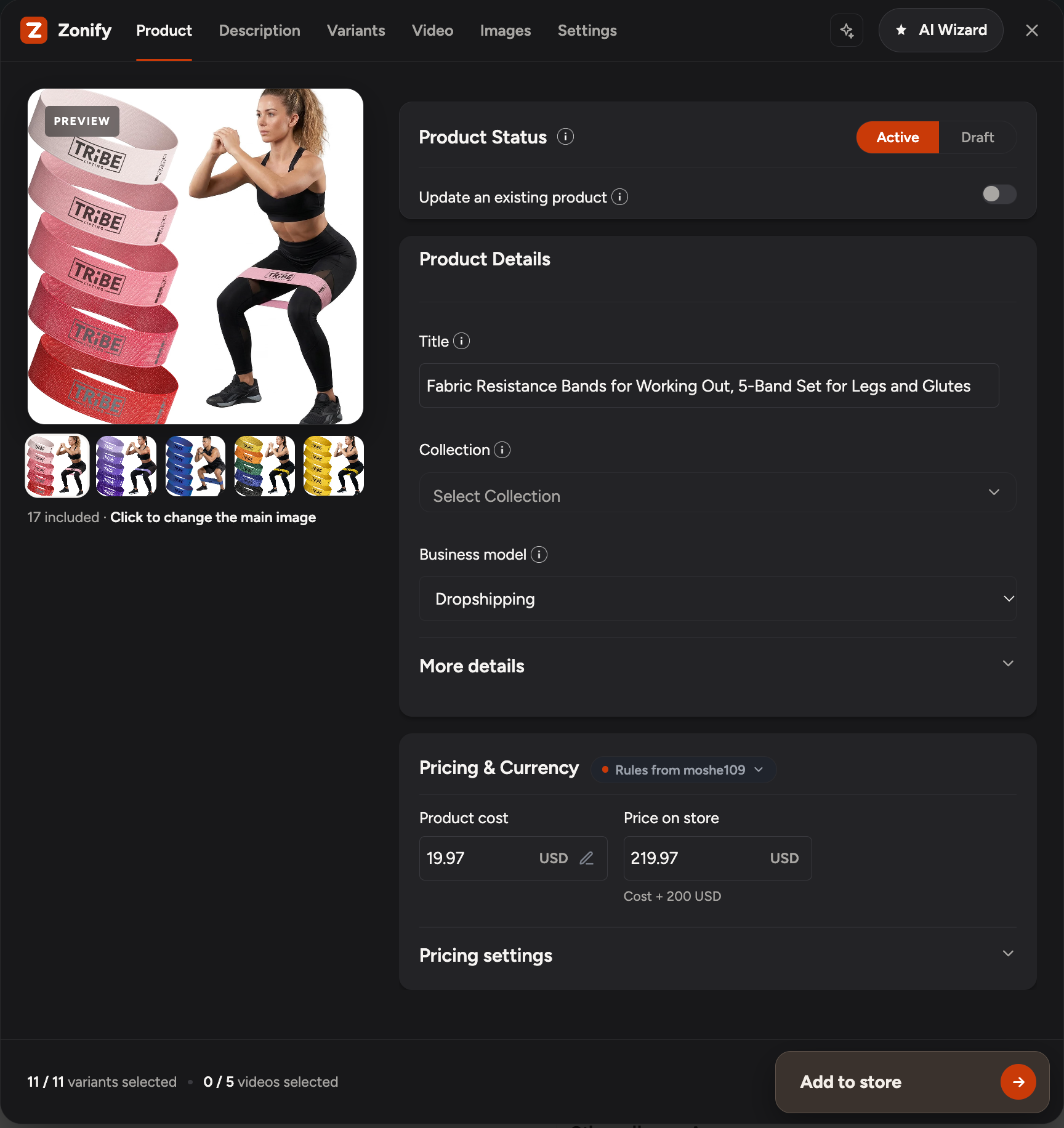
What you can change before importing
- Product status (Active or Draft) and business model.
- Title and description, with optional AI rewriting and translation.
- Collection or category.
- Variants: import all, pick some, or split them into separate products.
- Images and, on Shopify, the product video.
- Prices, from your pricing rules.
Every option is explained in The product editor.
After importing
The product appears in your store and in your Zonify Import List. Importing many products? See Import several products at once.
Still stuck? Email support@zonify.app and include your store URL.