
How to set price markup using Zonify?
Pricing rules set the price of every product you import, so you don't have to calculate prices by hand. You can still change any price in the editor before importing.
Set your pricing rules
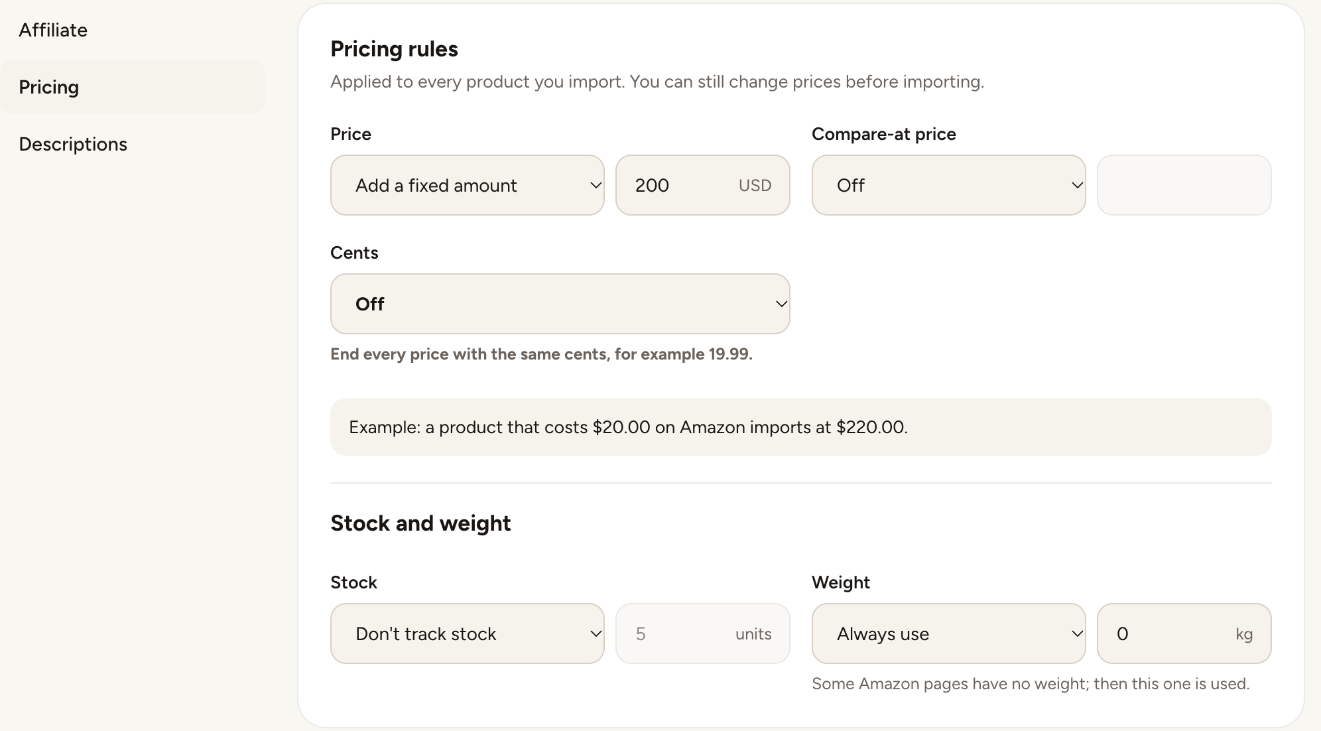
- Open your Zonify dashboard and go to Settings > Pricing.
- Under Price, choose how the store price is calculated:
- Multiplier (% of cost): for example 200% turns a $20 product into $40.
- Add a percentage: for example 50% turns a $20 product into $30.
- Add a fixed amount: for example $10 turns a $20 product into $30.
- Under Compare-at price, choose Off or a rule. The compare-at price is shown crossed out next to your price.
- Under Cents, choose Off or end every price with the same cents, for example .99.
- The example line shows the result for a $20 product. Your changes are saved for future imports.
Change the rules while importing
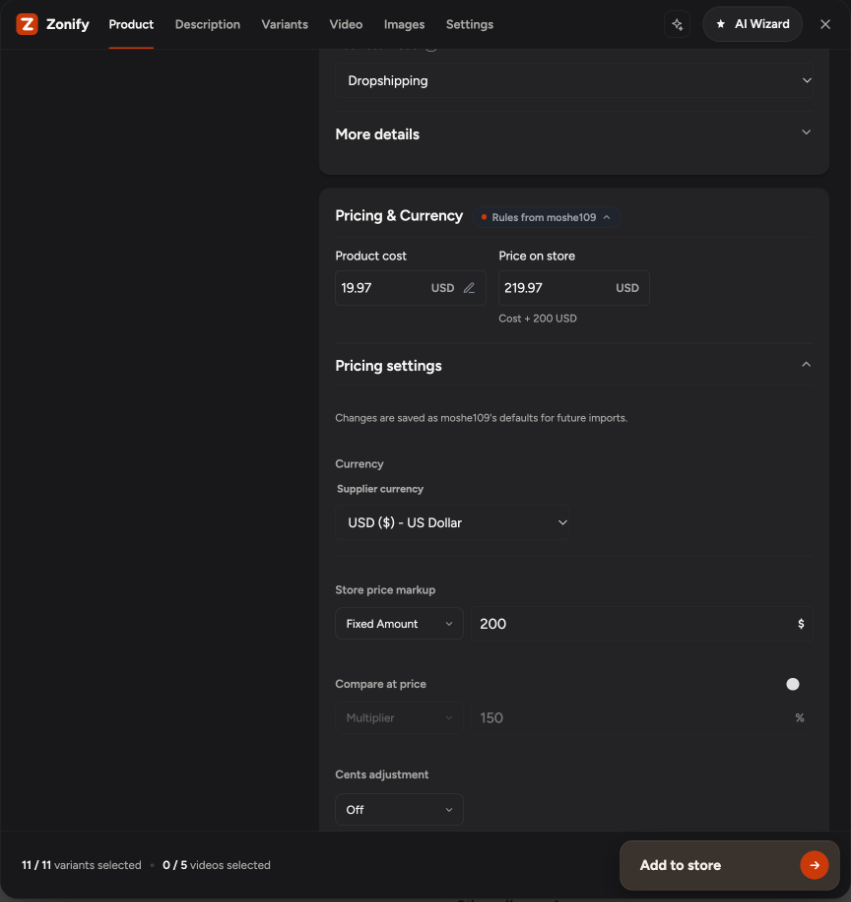
Open Pricing settings in the editor's pricing card. Changes there are also saved as your store's defaults.
Currency
Zonify converts Amazon's price to your store's currency with a current exchange rate, then applies your rules. The editor shows "Converted from" with the original price, and you can undo the conversion for one product. In the extension, Settings > General > Currency conversion sets this to Automatic, Ask first or Off.
Affiliate products
Affiliate products use the same price rule. The compare-at price isn't used for affiliate products.
Stock and weight
The same Settings page sets the stock (don't track stock, or track starting with a quantity you choose) and the weight (Amazon's weight with your default as a fallback, or always your default). In the editor's Variants tab you can also use Amazon's own stock for a product.
Still stuck? Email support@zonify.app and include your store URL.