
The product editor
When you click Get product on your dashboard, or Add on Amazon with the extension, Zonify opens the product editor. Nothing is added to your store until you click Add to your Store (or Add to store in the extension).
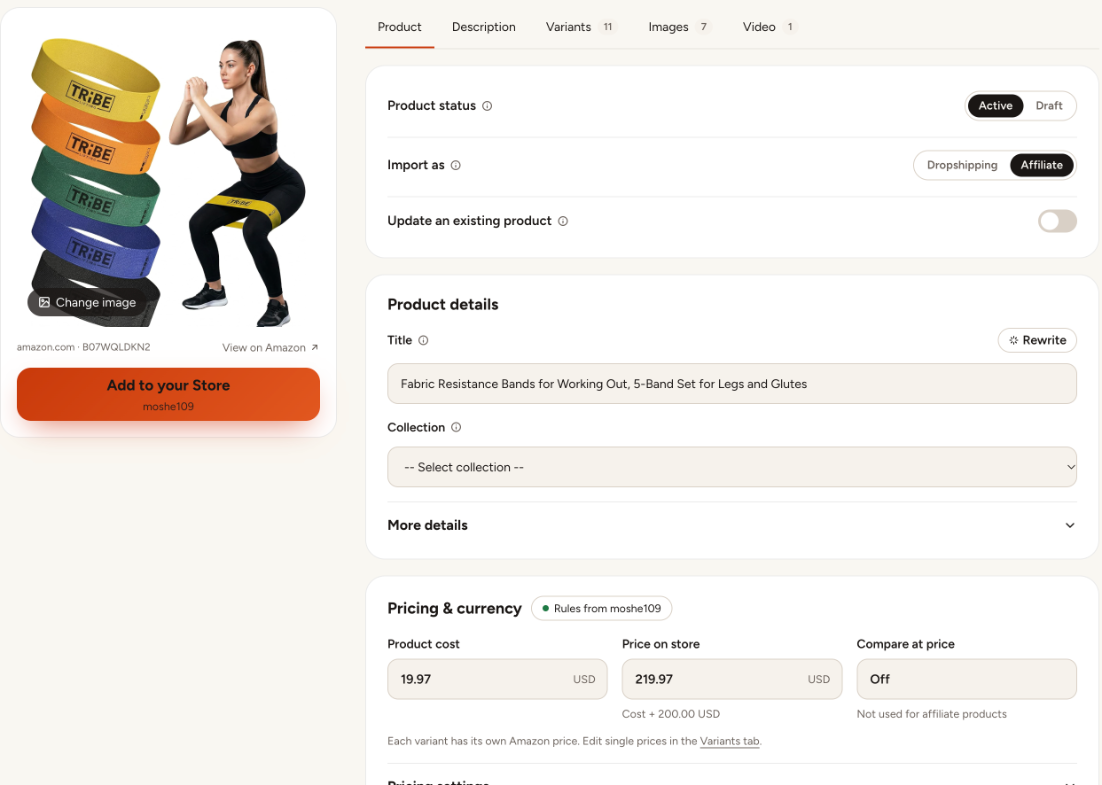
Product tab
- Product status: Active publishes the product right away. Draft keeps it hidden until you publish it in your store.
- Import as: Dropshipping or Affiliate. See Choosing the right business model.
- Update an existing product: replace a product that is already in your store instead of creating a new one. See Update an existing product.
- Title: edit it, or click Rewrite to have AI write a new one (Premium).
- Collection: a Shopify collection or a Wix category. See Import to a collection.
- More details: product type, tags and weight.
- Pricing & currency: the product cost, your store price and the compare-at price, calculated by your pricing rules. When the variants have different prices, the line under each field shows the range for all variants.
Variants tab
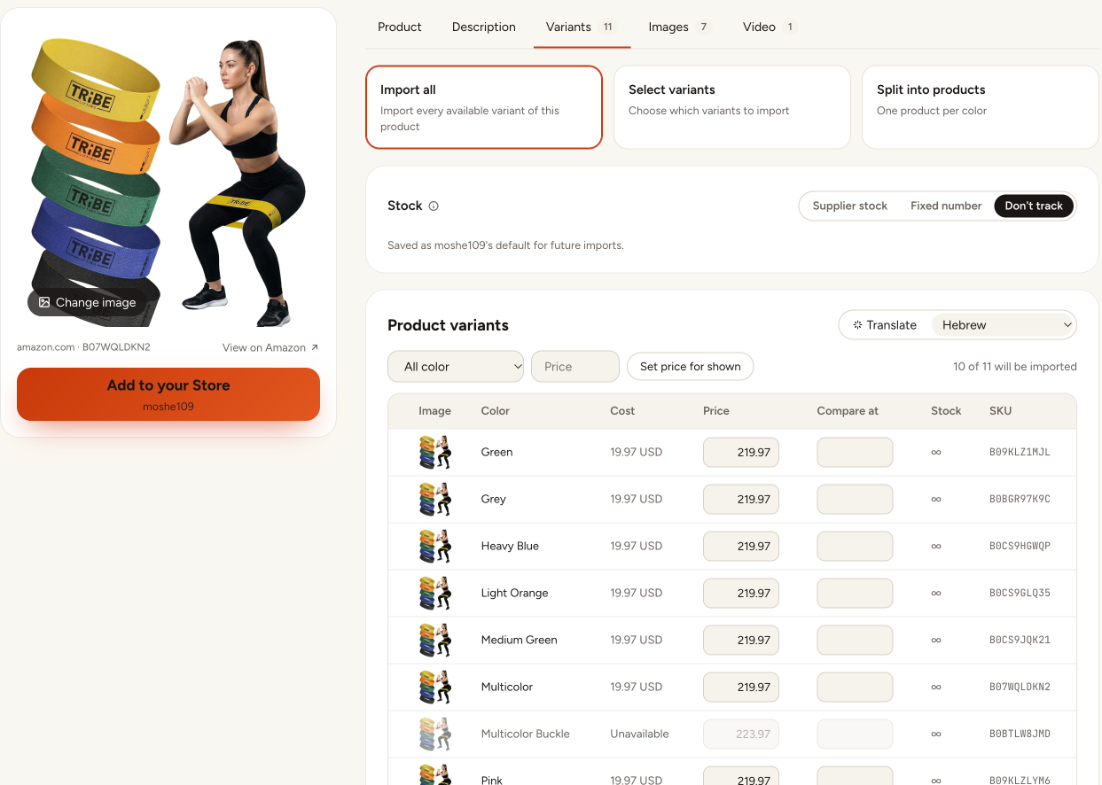
- Import all: every variant Amazon lists as available.
- Select variants: tick the ones you want.
- Split into products: one product per color (or per first option), each with its own title.
- Stock: use Amazon's stock, a fixed number, or don't track stock.
- Product variants: edit the price, compare-at price and SKU of each variant. Variants Amazon marks as unavailable are shown greyed out and aren't imported.
- Translate: translate the option names and values.
Description tab
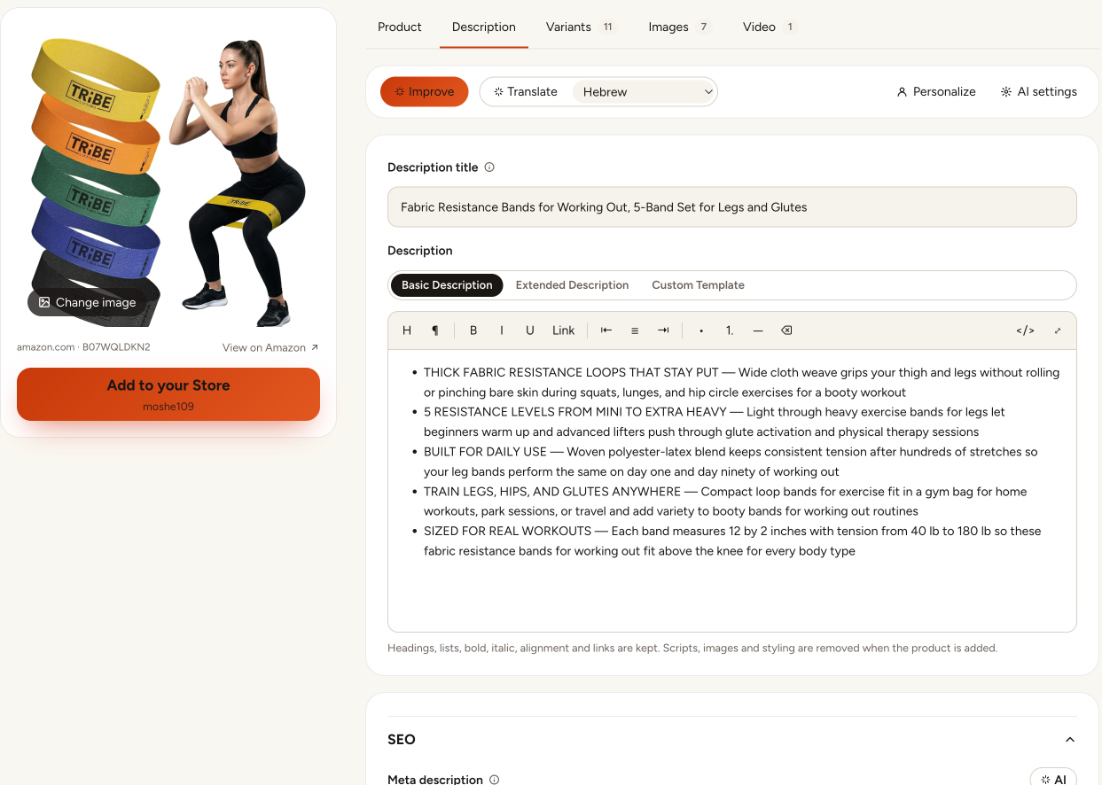
- Choose the Basic or Extended description from Amazon, or one of your description templates.
- Edit the text. Headings, lists, bold, italic, alignment and links are kept; scripts, images and styling are removed.
- Improve and Translate use AI (Premium). See AI rewrite and translation.
- SEO: the meta description for search engines.
Images and Video tabs
Pick which images to import and which one is the main image. On Shopify, you can add the product video on the Premium plan.
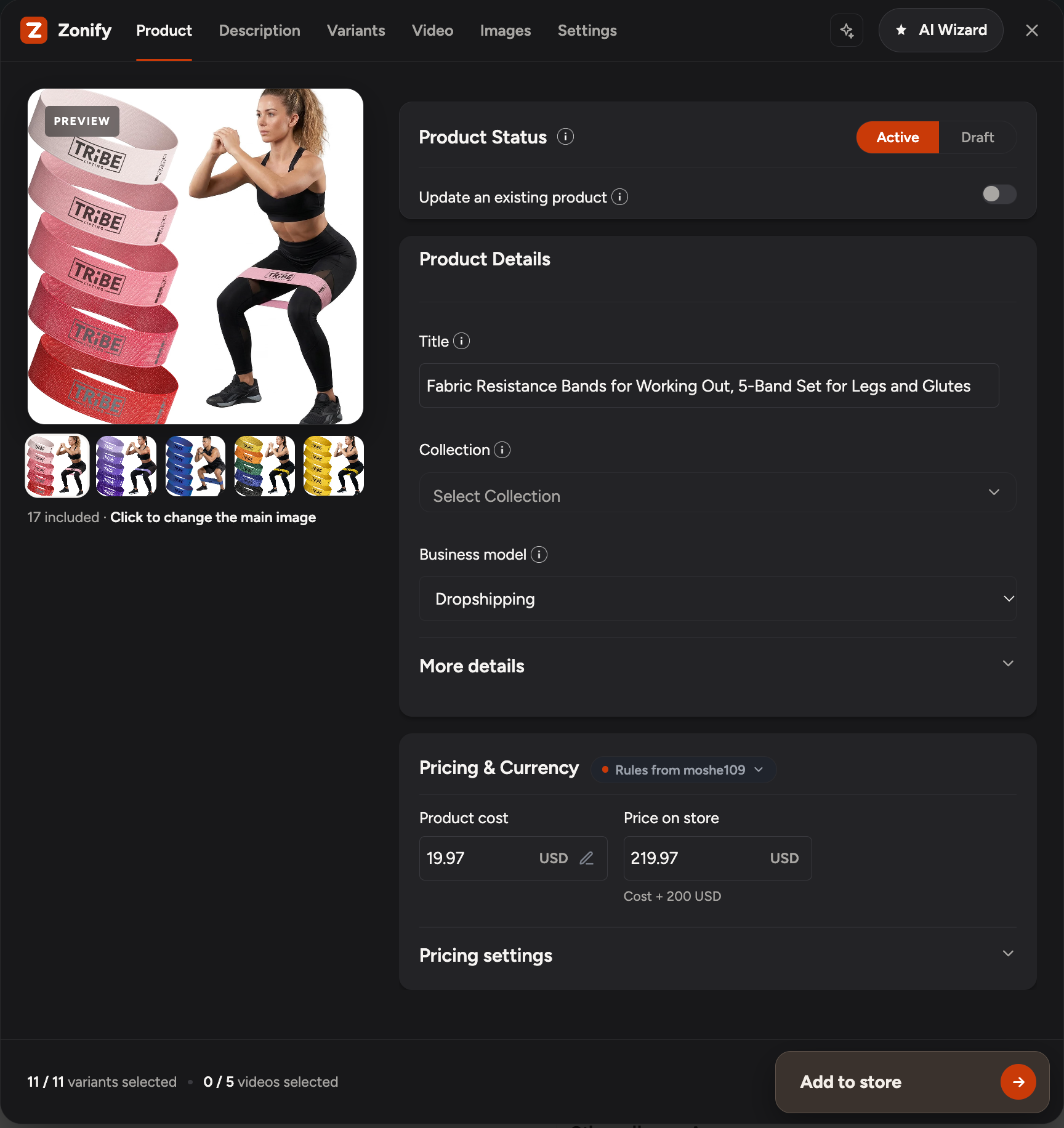
The same editor in the Chrome extension
The extension's panel has the same options, plus a Settings tab with your import defaults: description type, product status, AI output language, currency conversion and weight.
Still stuck? Email support@zonify.app and include your store URL.